PUBG Mobile Top-Up Guide: UC, Player ID, Region, and Checkout Checks
PUBG Mobile Top-Up Guide: UC, Player ID, Region, and Checkout Checks
Insights
Helps PUBG Mobile players who want a calm, repeatable way to top up by walking through product, account, region, and checkout checks before payment.
If you play PUBG Mobile and want a clean, low-stress way to top up on HaiTopUp, this guide walks through the product page, the player ID, the region question, and the checkout checks that matter most — so the only surprise on order day is how quick the whole thing feels.
Before you open the product page
Have two pieces of information ready: your in-game player ID and the region your account belongs to. Both are visible inside PUBG Mobile itself. Writing them down once, somewhere private, saves you from guessing under pressure later.
If you've never bought UC before, take a moment to look at the in-game shop so you know what UC means in your account: it's the in-game currency typically used for cosmetic and seasonal content. The HaiTopUp page lets you buy supported products from outside the game, scoped to the rules on the current product page.
Step 1 — Open the PUBG Mobile page
Go to the PUBG Mobile section on HaiTopUp and read the current product page. Confirm:
- The page title clearly mentions PUBG Mobile.
- The product type matches what you want (for most players this will be UC).
- Any region notes on the page apply to your account.
If something on the page is unclear, slow down. The product page is the source of truth for what each item actually includes. It's also where any current promotion conditions are spelled out, which is useful even if you're not chasing a discount.
Step 2 — Pick the right UC amount
UC is sold in tiers. Make sure you're picking the tier you actually want, not the one above or below it. Larger tiers can look visually similar to smaller ones in a list view. If you intend to combine a UC purchase with other items in the future, plan that separately rather than under time pressure.
A useful habit: before tapping a tier, say the amount out loud. It sounds silly, but it forces you to actually read the number rather than the position on screen.
Step 3 — Enter your player ID carefully
Your player ID is the identifier the order is delivered to. It should be entered exactly as it appears in PUBG Mobile. A few practical tips:
- Type the ID in directly when possible, rather than relying on autofill.
- Read it back digit by digit before continuing.
- If the product page shows a name lookup after you enter the ID, glance at the result. If the name looks completely different from what you expect, stop.
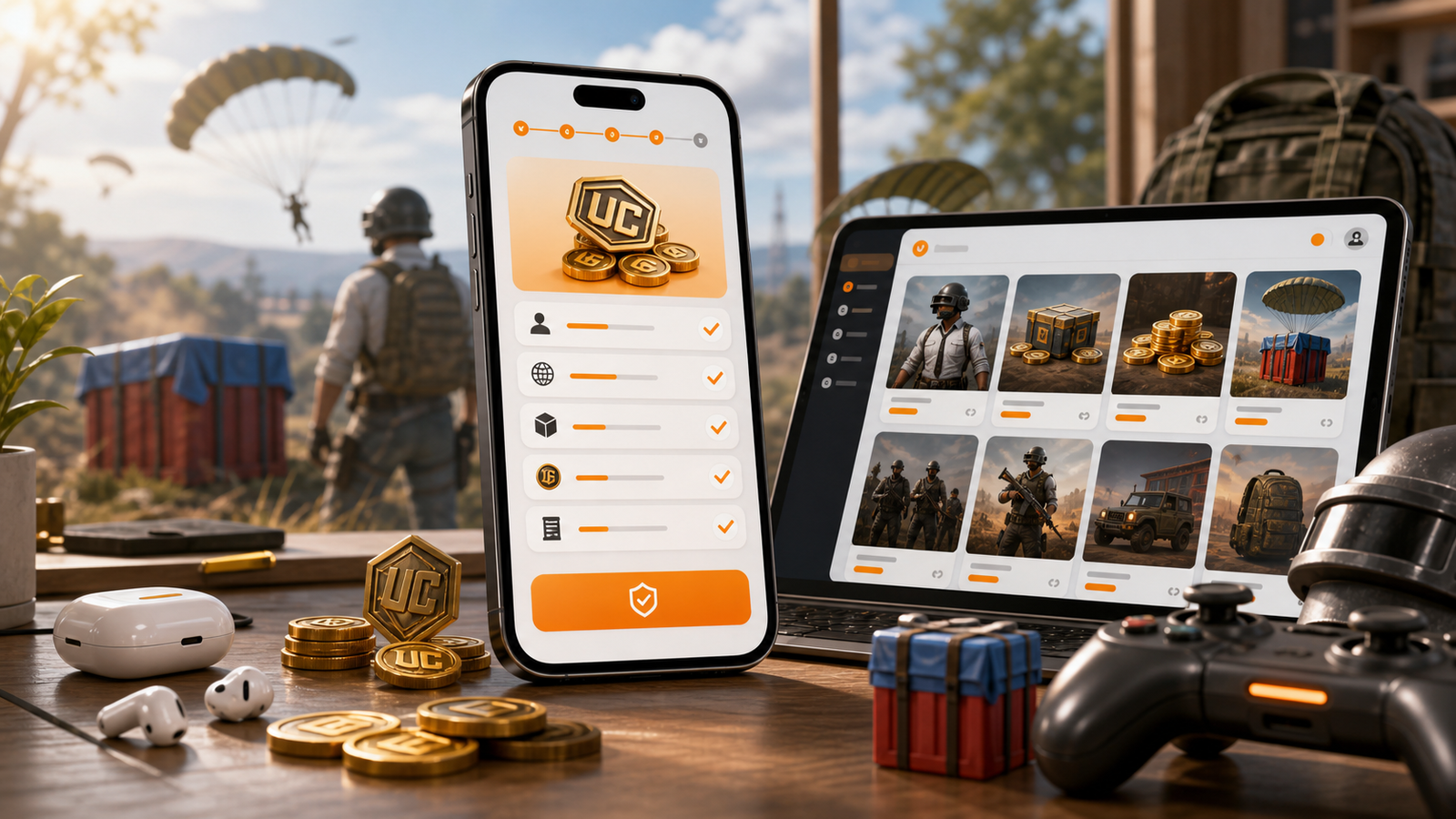
The lookup is a sanity check, not a final confirmation. Ultimately, the ID you submitted is where the order goes — and that's true even if the lookup didn't show you anything.
Step 4 — Region matters
PUBG Mobile has different regional account environments. A top-up sent to the wrong region usually cannot be redirected after payment. If the product page asks you to select a region, choose the one your account actually plays on. If you're unsure, log into the game first and confirm.
If you've recently switched regions or are travelling, double-check before continuing. The default selection on the page may not match your account's home region.
Step 5 — Checkout review
On the checkout page, take a slow look at:
- The product line — UC tier and amount.
- The player ID shown.
- The region or server, if displayed.
- The total amount.
- Any selected launch deals or discount lines, if applicable.
If anything doesn't match what you saw on the product page, return and re-check. Review the live checkout before payment.
Step 6 — Payment
Specific payment options depend on the current checkout page. Choose a method you're comfortable with, on a device and network you trust. Confirm the total one last time before paying.
After payment, eligible game top-ups may be delivered within 5 minutes after payment confirmation, but actual timing depends on the game and order. Keep the order confirmation page or email until you've verified the UC has arrived in your account. If you want, do a quick balance check inside PUBG Mobile so you can close the loop with confidence.
A short pre-payment table
Field | What to confirm |
|---|---|
Game | PUBG Mobile (not a similarly named title) |
Product | UC tier and amount |
Player ID | Character-perfect match |
Region | Matches your in-game account |
Total | Matches product page |
Payment | A method and device you trust |
Common mistakes worth avoiding
- Buying a tier just below the one you wanted because the buttons look similar.
- Pasting a player ID that included an extra space or character.
- Skipping the region selector because the page loaded fast.
- Treating the lookup name as proof — it's a hint, not a confirmation.
- Topping up while distracted, in a noisy environment, or in a rush.
- Trying multiple times in quick succession after a single failed attempt, instead of pausing to read the message on screen.
Promotions and what they actually mean
When you see "up to 10% OFF selected eligible game top-ups" on certain PUBG Mobile products, it means specific UC products may qualify under specific conditions. The current product page is the source of truth — if the discount is reflected at checkout, you're good; if not, the product likely isn't part of that selection right now. Selected launch deals work the same way.
The simplest rule: don't expect a discount until you see it on the checkout page. That keeps your decision-making focused on the product you actually want, not on chasing a banner.
Payment and offer availability may vary by game, product, region, account, payment method, risk review, and checkout status.
Safety reminder
You should never need to share your PUBG Mobile login password to receive a standard top-up. If a page or message asks for your password, treat it as a warning sign and stop. Standard top-ups only require the account identifier the product page asks for — no more.
FAQ
Do I need to log into PUBG Mobile to top up?
You don't log into the game on HaiTopUp. You enter your player ID. Logging into the game is useful only if you need to look up your ID or region.
What if I picked the wrong UC tier?
If you haven't paid yet, return to the product page and choose again. After payment, the order is tied to what you submitted.
Why does region matter so much?
Regional accounts are separate. UC delivered to the wrong region typically can't be moved.
How long does delivery usually take?
Eligible game top-ups may be delivered within 5 minutes after payment confirmation, depending on the order.
Can I use any payment method?
Specific payment options depend on the current checkout page.
What if my UC hasn't shown up yet?
Wait a few minutes, then check the in-game balance. If you have an order confirmation, keep it on hand for reference.
When you're ready, check current PUBG Mobile top-up deals at here and review the live checkout before payment.